Edge Cases & Special Scenarios
How Cadence handles unusual situations
Hospitalized Patients
When a patient is admitted to the hospital:
- Add a "Hospital Stay" note covering the admission dates
- Partial units can be logged for admission and release days only
- The rest of the hospital stay is soft-locked
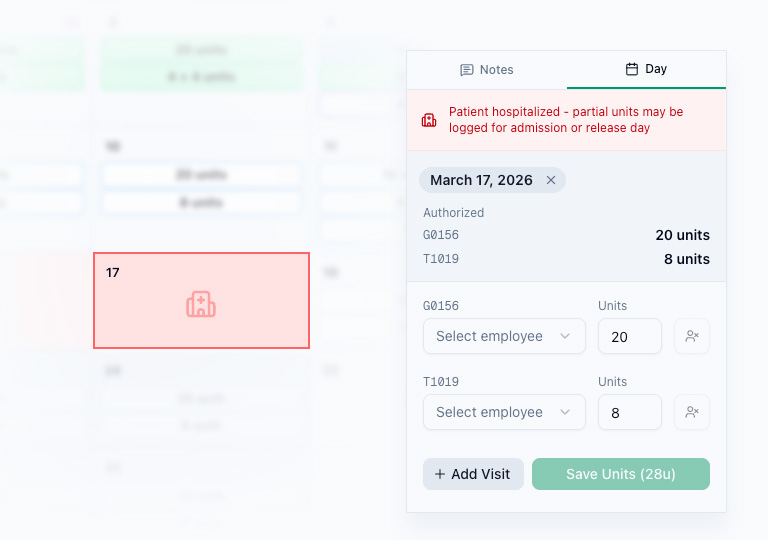
Hospital days show a hospital icon and red tint on the calendar. The detail panel banner explains what's allowed.
Rejected Claims
When a payor fully rejects a billed claim (e.g., missing information, billing error):
- Remittance uses Adjust Payment (paid = 0, re-bill = full amount) → item converts to re-bill (purple). For RNA visits, use the simple "Re-bill" toggle instead.
- The issue is resolved offline
- Billing finds the item via the purple "Re-bills" button and re-submits → day turns blue
- Remittance confirms payment → day turns green
This assumes the claim can be fixed and re-submitted. If the payer denied the recertification outright, see Denied Recertifications below instead.
Payment Corrections (Partial, Overpaid, etc.)
When payment doesn't match what was billed:
- Remittance uses Adjust Payment → records paid units + optional re-bill
- Standard case: original marked paid (corrected units), separate re-bill item created if needed
- Full rejection (paid = 0): original converts directly to re-bill (purple) — no paid item is created
- If re-bill created: Billing re-submits the re-bill item → day turns blue
- Remittance confirms re-bill payment → day turns green
Denied Recertifications
Care continues while a recertification is pending, and the approval usually arrives dated to cover the visits already delivered. When it is denied instead, that work will never be paid and there is nothing to re-submit:
- Remittance marks the affected visits Unpayable → days turn maroon
- The visits leave the remittance queue and stop counting as money owed
- Payroll is unaffected. The caregiver worked those visits, so they still count as hours on payroll statements. The agency absorbs the cost
- If the denial is later overturned, Remittance uses Undo Unpayable and each visit returns to the status it came from
The difference from a rejected claim is whether re-submitting can work. Rejected means try again; unpayable means there is nothing left to try.
Multiple Visits Per Day
A patient can have multiple line items on one day:
- Different aides covering different parts of a shift
- Multiple billing codes (e.g., G0156 + T1019)
- An RNA visit alongside a regular visit
Each line item tracks independently through the billing lifecycle.
Missing Prior-Month Timesheets
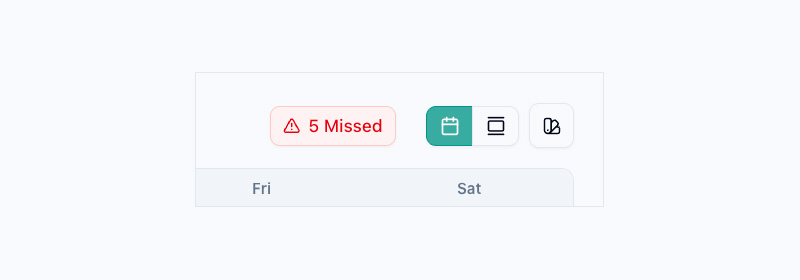
A red "# Missed" button appears in the calendar header when a patient has visits from previous months with no report logged. Click it for the list, most recent first, then click any entry to open that day. There's no time limit, so you can log retroactively.
To see these for every patient at once, open Logging To-Dos.
Finding Re-bills
A purple "# Re-bills" button appears in the calendar header (for the Billing role) when there are items that need to be re-billed — from rejected claims or payment corrections. Click it to see a list of re-bill items grouped by month, then click any entry to navigate directly to that day.
The count can also go down without the biller doing anything: if Remittance marks a re-bill item Unpayable, it drops out of the queue because it is never going back to the payer.
Units Exceeding Schedule
Hours can flex between days within the same schedule week. The system shows a warning when total logged units exceed the schedule, but still allows the entry.
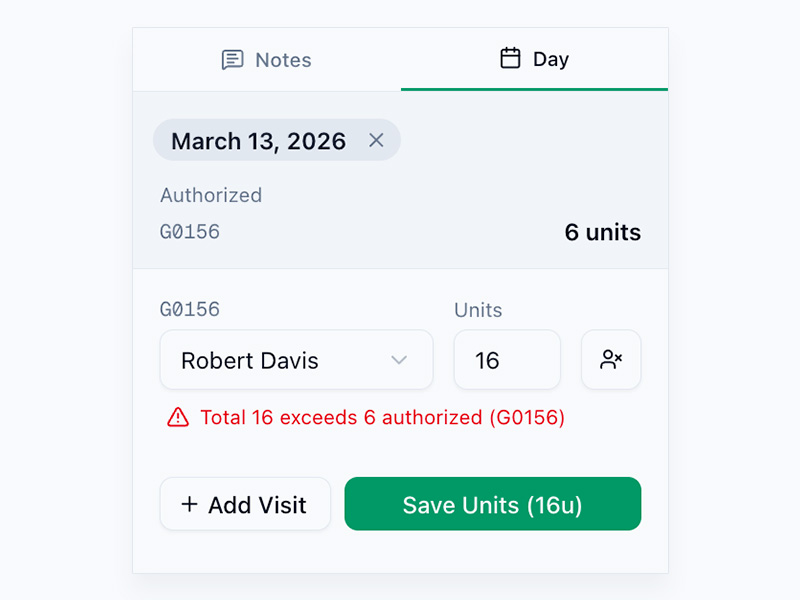
Exceeding scheduled units may result in claim denials. Check with your supervisor before logging over the scheduled amount.
Patient in Multiple Binders
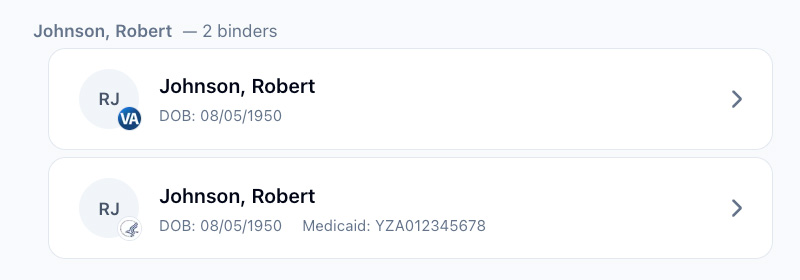
Rare but possible — the same patient can appear under different payors. On the /patients page, these patients show with a "— # binders" label indicating they exist in multiple binders.
Billing Before Visit Reports (Unverified Billing)
Some binders allow billing before visit reports are received. This is configured per binder — payors like VA, DoDD, and BWC have this turned off because corrections on their portals are difficult.
When enabled:
- Billing can mark unlogged days as billed using scheduled units
- Logger sees these as missed visits (red border) and can log actual units when the report arrives
- If actual units differ from billed units, a Billing Error is created for Remittance to resolve
- Remittance sees a "Billing Errors" button in the calendar header and resolves errors via the Adjust Payment form (pre-populated with suggested values)
- The day permanently records the billing error and resolution date as an audit trail
Editing After Billing
- Logged entries can be edited by Logger or Admin
- Billed entries cannot be directly edited — Billing can undo back to logged, Admin can also undo
- Paid entries cannot be directly edited — Remittance can undo back to billed
- Unpayable entries cannot be directly edited. Remittance uses Undo Unpayable, which returns each visit to whichever status it was written off from