Logging Visit Units
How to enter units from aide visit reports
This is your primary task as a Logger — entering the units from aide visit reports into the calendar.
Logging a Single Day
- Click a day on the calendar to select it
- The Day Detail panel opens on the right
- If the patient has multiple schedules, select the billing code
- Enter the number of units worked
- Select the caregiver who performed the visit
- Click Save
If the caregiver isn't in the list yet, click Add "Smith, John" at the bottom of the box, enter their first and last name, and carry on — you don't have to leave the day. See Managing Caregivers.
Where nothing else applies, the box starts on Unassigned, so a visit always saves. Those visits collect on the Unassigned payroll statement for someone to attribute later.
What You'll See After Logging
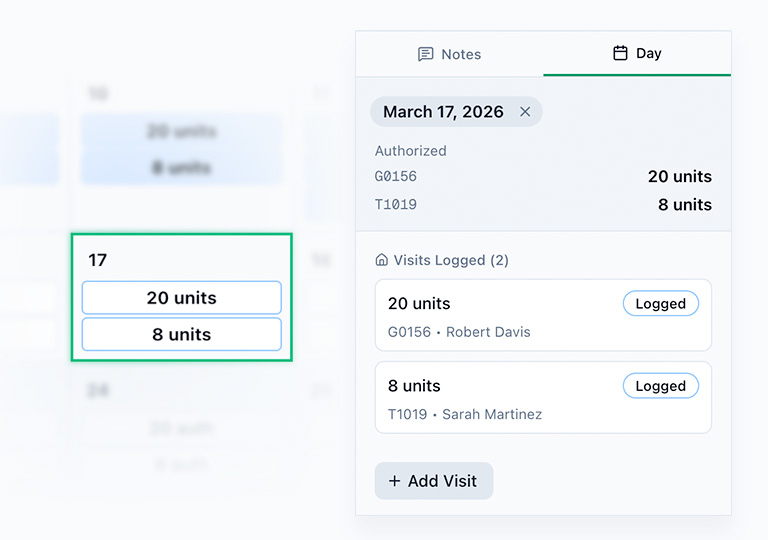
- The cell changes from white to white with a blue border (logged status)
- The units and billing code appear inside the cell
- The entry appears in the detail panel as an editable line item
Scheduled Visit Times
The calendar footer (below the grid) shows the scheduled visit times for each day of the week. Use this to cross-reference the visit report against the patient's expected schedule. If the schedule uses an open schedule, the footer shows "Open" for those days.

Important Rules
- You can only log past and current days — future days are locked
- Hospital days allow partial units (admission/release days)
- Hold days cannot have units logged
- If scheduled units show "0" for a day, the patient has no schedule for that day of the week
Always double-check the caregiver name matches the visit report. Their hours are totalled straight from these entries, so a wrong caregiver means someone is paid for a visit they didn't work — and someone else isn't.