Hospital & Hold Days
How hospitalization and hold status affects the calendar
Hospital Days (Soft Lock)
When a patient is hospitalized:
- The calendar cell shows a hospital icon with a red-tinted background
- Partial units CAN be logged for admission and release days
- The day participates in bulk selections
- A banner in the detail panel explains: "Patient hospitalized — partial units may be logged"
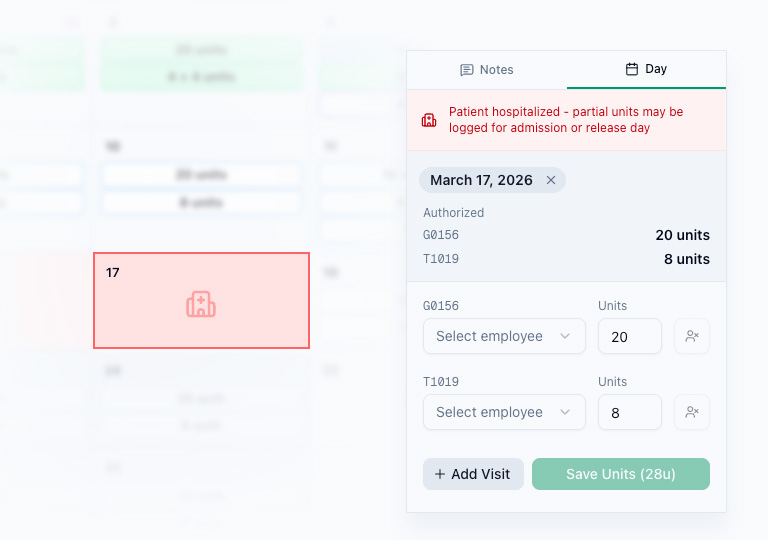
Hospital days are a "soft lock" — you can still log partial units, which is important for billing admission and release day services.
Hold Days (Hard Lock)
When a patient is placed on hold:
- The calendar cell shows a pause icon with a red-tinted background
- No units can be logged or billed — the day is completely locked
- The day is excluded from all bulk actions
- Only notes are visible in the detail panel
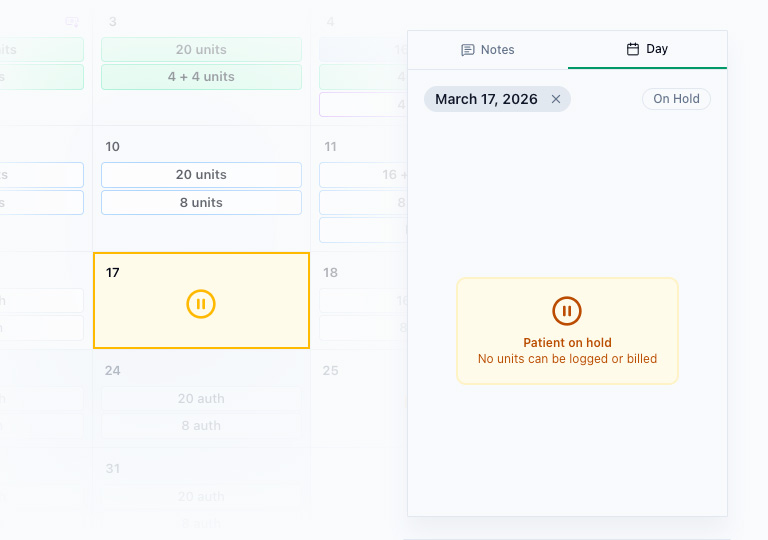
If you need to log units for a day that's on hold, the hold note must be removed first. You can remove the hold status by deleting the hold note on the "Notes" tab.
How to Set Hospital/Hold Status
Add a note with type "Hospital Stay" or "Hold" covering the relevant days. This automatically:
- Changes the cell appearance (e.g. red tint, icon)
- Enforces the locking rules
- Spans across all selected days
Removing Hospital/Hold Status
Delete the hospital or hold note from the notes panel. The days will return to their normal state.