Using Notes & Annotations
How to add notes to calendar days for team communication
Notes are how the team communicates about specific days on the calendar.
Note Types
| Type | Who Can Add | Purpose |
|---|---|---|
| General | All roles | General communication (schedule changes, FYI) |
| Hospital Stay | All roles | Marks days as hospitalized and locks the day |
| Hold | All roles | Pauses billing and completely locks the day |
| No Service | All roles | Marks days with no service and locks the day |
| Insurance Switch | All roles | Flags an upcoming insurance change |
| Overpaid | System-generated | Automatically created when remittance records an overpayment |
Hospital, Hold, and No Service are lock notes: they're mutually exclusive and lock the day from further edits. Only one can be active on a given day.
If a patient is regularly off on an alternating pattern (every other weekend, say), set the schedule up to alternate instead of marking No Service every fortnight. Those days then read as simply unscheduled, which is what they are. See Managing Schedules.
Adding Notes
- Select one or more days on the calendar
- The quick action popover appears
- Choose a note type from the dropdown
- Type your note text
- Press Enter or click send
Where Notes Appear
- Calendar cells — Small colored icons in the corner for non-lock notes (insurance, general, overpaid)
- Lock notes (hospital, hold, no service) — Change the entire cell background and show a large icon instead of the small corner indicator
- Notes panel — When no day is selected, the detail panel shows all notes for the month grouped by type
- Day detail — When a day is selected, its notes appear in the detail panel
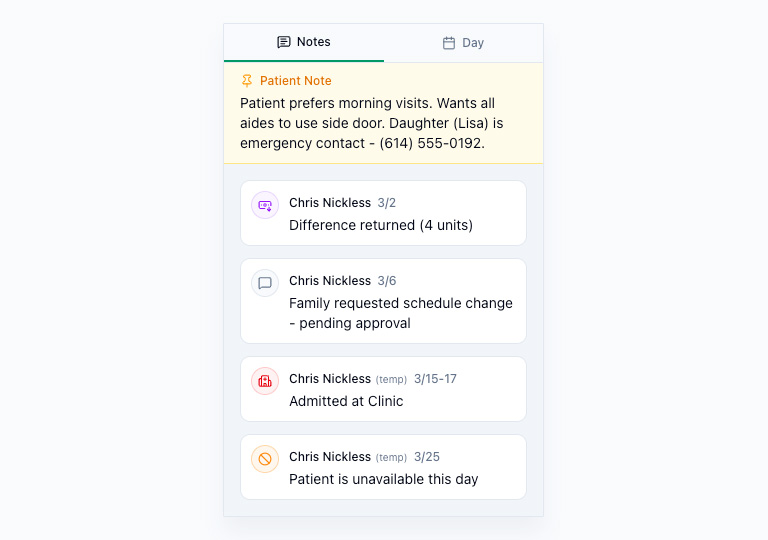
Pinned Patient Notes
Each patient can have a permanent pinned note (set in the patient edit form) that always appears at the top of the notes panel, regardless of which day is selected. This is useful for ongoing information like "Requires Spanish interpreter" or "Family prefers afternoon visits."
Editing & Deleting Notes
Hover over a note in the detail panel to reveal the edit and delete buttons.
- Your own notes — You can edit or delete any note you created
- Lock notes (hospital, hold, no service) — Any role can delete these to unlock the affected days
- Other people's notes — Only admins can edit or delete notes created by someone else