Navigating the App
How to move through binders, patients, and calendars
The Binder → Patient → Calendar Flow
This is the primary navigation path in Cadence:
- Binders page (
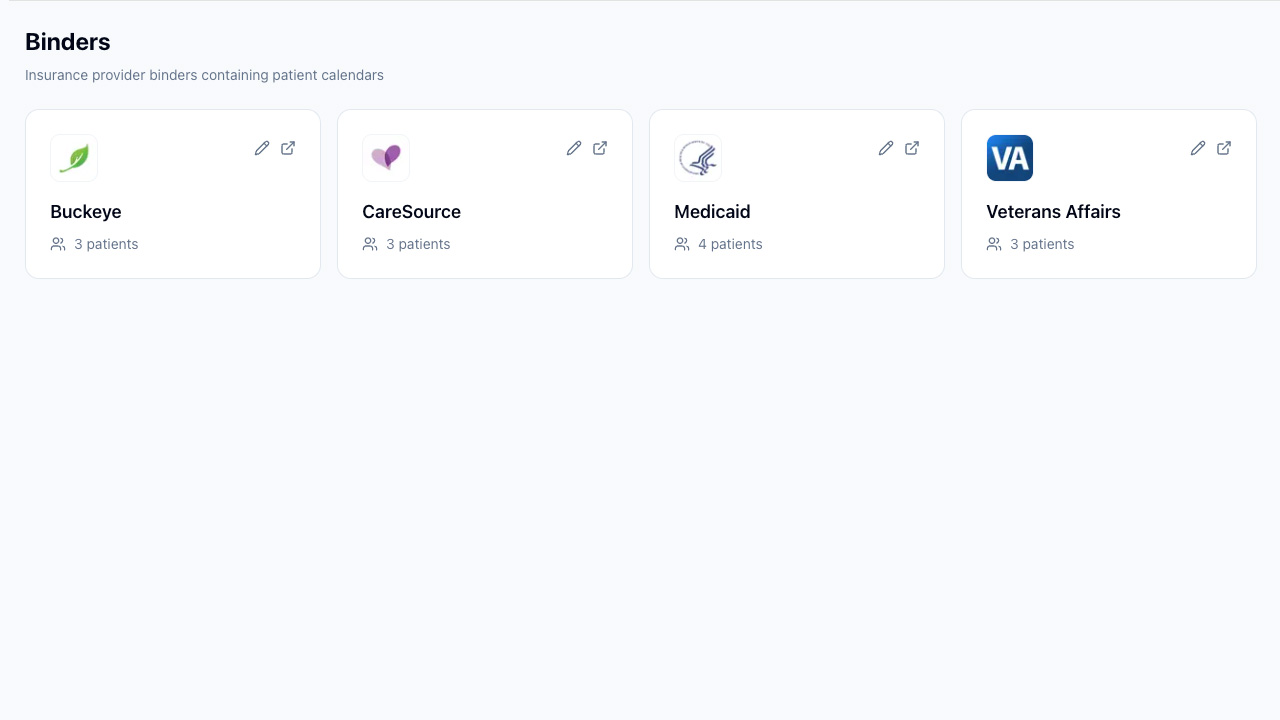
/binders) — Grid of insurance provider cards (e.g., Buckeye, CareSource, VA, Medicaid). Each shows the payor name, logo, and patient count.
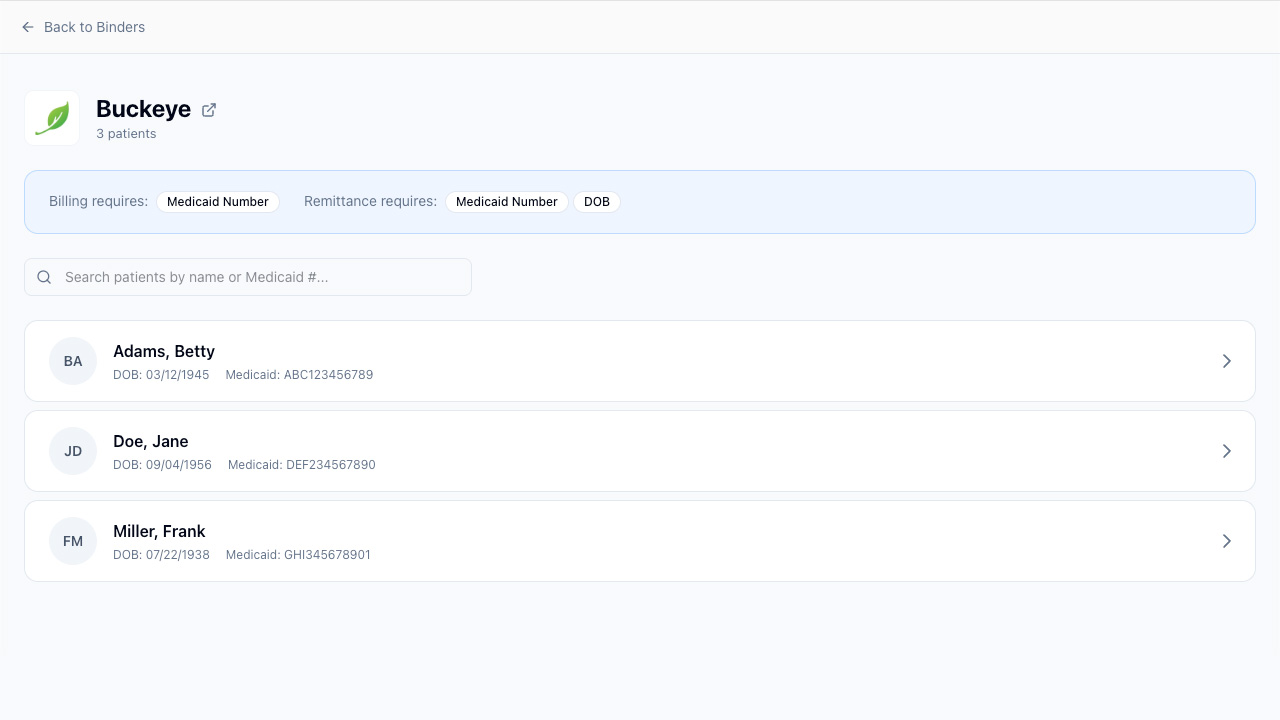
- Binder detail — Click a binder card to see all patients for that insurance provider, sorted alphabetically. Use the search bar to find patients by name or Medicaid number.
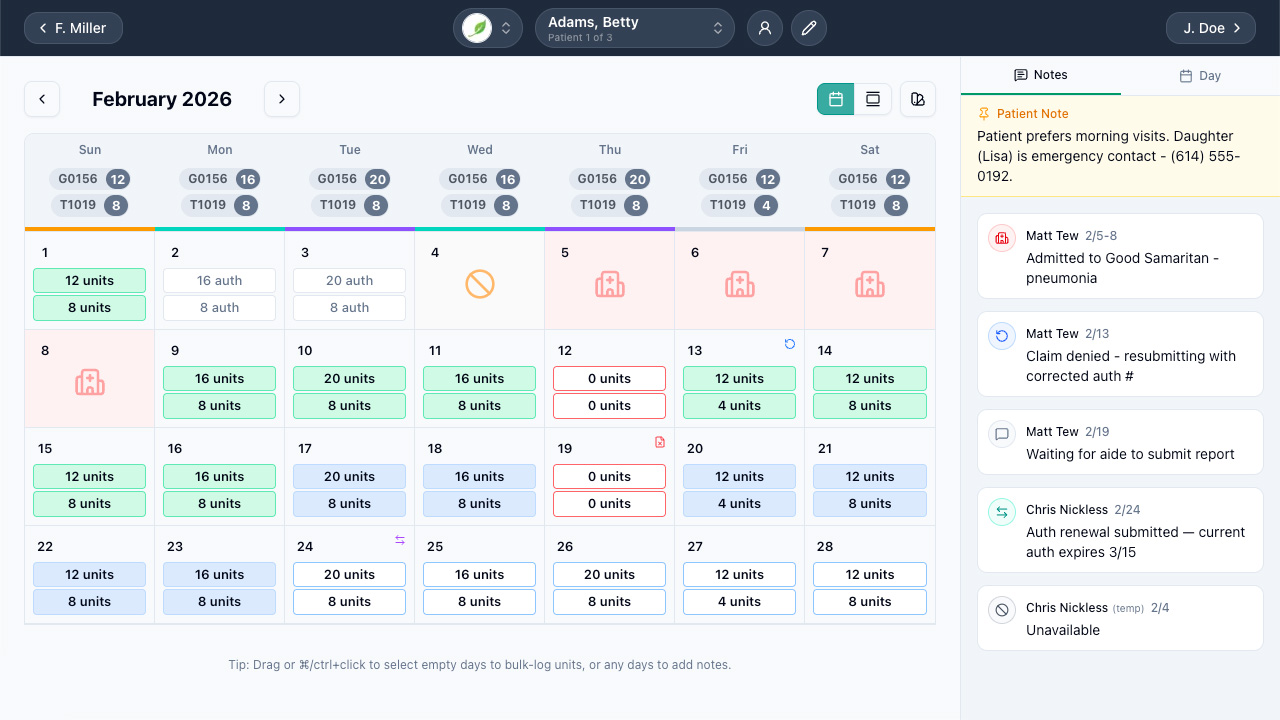
- Patient calendar — Click a patient to open their monthly calendar. This is where all the action happens.
Patient Navigation
Once you're in a patient's calendar:
- Prev/Next arrows — Move through patients alphabetically within the binder
- Patient dropdown — Jump to any patient in the binder
- Payor dropdown — Switch to a different binder (redirects to first patient)
- Info toggle (person icon) — Expand/collapse the patient info panel
- Edit button (pencil icon) — Open the patient edit form (if your role allows)
Use the payor dropdown in the patient nav bar to quickly switch between binders without going back to the binders page.

All Patients View
The /patients page shows every patient across all binders. Use the payor filter dropdown and search bar to find anyone. Clicking a patient navigates to their calendar within their binder.
Admin Sidebar
If you're an Admin, you'll see a sidebar on the left with links to Dashboard, Binders, Patients, and Users. Non-admin roles navigate primarily through the binder flow.