Marking Visits as Billed
How to mark logged visits as billed after submitting claims
After you've submitted a claim on the insurance company's portal, mark the visits as billed in Cadence so the team knows the claim is out.
Single Day
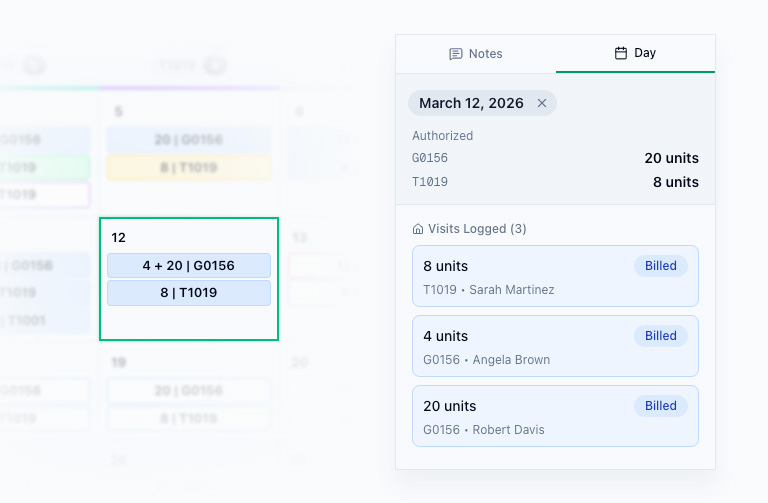
- Click a logged day (white cell with blue border)
- In the detail panel, click "Mark as Billed"
- The cell turns blue
Multiple Days
- Drag to select a range of logged days, or use Shift+Click for a range
- The quick action popover appears with "Mark as Billed"
- Click it — all selected logged days turn blue at once
Quick toggle: Double-click any logged day to instantly mark it as billed. Double-click a billed day to undo.
Re-billing Rejected Claims
When claims are rejected by insurance or partially paid, they appear as purple items on the calendar. A purple "Re-bills" button in the calendar toolbar shows the count and lets you navigate directly to these items. See Undoing & Re-billing for the full workflow.
Working Through a Binder
The "Patient X of Y" indicator underneath the patient's name at the top of the screen tracks your progress as you work through each patient in a binder. Use the Next arrow in the top-right corner of the screen to move to the next patient after you've finished billing.

The Patient Info Panel
When you're in the billing role, the patient info panel auto-expands to show the fields this payor requires (Medicaid #, DOB, schedule #, etc.). These are the exact fields you'll need when submitting claims on the payor's portal.

Each payor requires different fields. The system highlights only what's relevant for the current binder, just like the physical binder system. For many fields you can click to copy the value to your clipboard to enable you to quickly paste into other forms.
Billing Before Visit Reports
Some binders allow billing before visit reports have been received. When this setting is enabled by an admin, you can mark unlogged days as billed using the same methods — click, double-click, or drag-select.
The system creates line items using the patient's scheduled units for that day. No manual entry is needed.
This setting is configured per binder. Payors like VA, DoDD, and BWC require logged visits before billing because corrections on their portals are difficult. Check with your admin if you're unsure whether a binder supports this.
When the visit report eventually arrives and the logger enters the actual units, any difference between what was billed and what was actually worked will be flagged for the remittance team to resolve.
Billing the Full Month in Advance
If your admin has also enabled "Bill the full month in advance" for the binder, you can bill upcoming days in the current month — not just days that have already passed. This supports payors that let you submit a claim for the whole month up front.
When you're viewing the current month, a "Select all" button appears in the calendar toolbar. Click it to select every day in the month at once, then choose "Mark Billed" in the panel. Days that can't be billed — locked days, days with no scheduled units, days already billed — are skipped automatically and listed for you with the reason.
Days billed before a report exists show a faded UV ("unverified") marker next to their units in the bulk billing table, with a short legend explaining it beneath the table. When the logger later enters the actual units, any difference is flagged for remittance to reconcile.
The "Select all" button and billing of future dates only appear when Bill the full month in advance is enabled and you're viewing the current calendar month. Future months always stay locked.