Inviting New Users
How to add new employees to Cadence
How to Invite a User
- Navigate to /admin/users
- Click "Add User"
- Enter their name and email
- Select their primary role (Logger, Billing, Remittance, Schedules, or Admin)
- Optionally add temporary roles (lets them switch between roles)
- Optionally check "Disable Edit Patient" to prevent this user from editing patient records
- Click Save
The "Disable Edit Patient" flag is useful for billing users who should see patient info but not modify it.
What Happens After Inviting
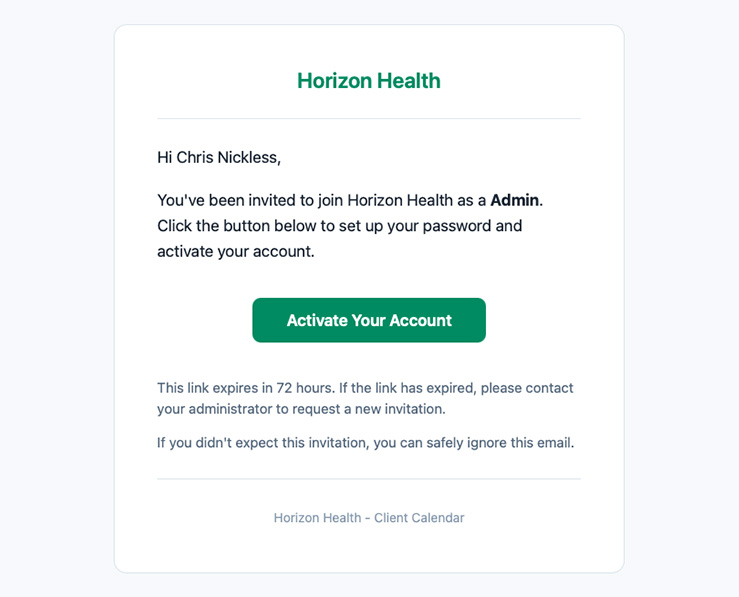
- An invitation email is sent from notifications@palanahealth.com
- The link is valid for 72 hours
- When they click it, they set their password
- Two-factor authentication is auto-enabled — they'll receive a code via email on each login
- Their account becomes active immediately
Managing Existing Users
Click any user in the table to edit their:
- Role — Change their primary role
- Temporary roles — Add or remove temp role access
- Disable Edit Patient — Toggle the patient editing restriction
If an invitation email expires (after 72 hours), you'll need to send a new invite. The old link won't work.